Practical automation · Outlook to Excel
From recurring emails to one clear report.
Turn repeatable report emails and an additional spreadsheet into a consistent Excel overview — without copying figures and rebuilding summaries by hand.
Repeatable messages call for repeatable rules. When emails follow an agreed structure, algorithms apply the same processing rules to the same input and settings. For this kind of task, we recommend rule-based automation rather than AI interpretation.
An example of the change in daily work
From assembling the report to checking the result.
Before: the employee builds the report
An employee searches through recurring emails for the reporting period, copies dates and figures into Excel, checks which runs should count and brings in comparison data from another workbook. Then they calculate totals and prepare summaries and charts.
After: the employee runs and reviews it
The employee chooses the period, how repeated runs should be counted and the agreed comparison workbook. The solution reads the structured emails, applies the rules, adds the spreadsheet figures and builds the report. The employee checks the inputs and reviews the finished workbook.
The work shifts from copying and assembling to checking and using the result. The report follows a repeatable structure, reducing manual preparation and making the process easier to hand over to another person.
The business workflow · Two sources, one report
From recurring inputs to a combined Excel report.
Recurring Outlook reports
Messages from an agreed folder, sender and report format. Read the defined figures and dates from the message body.
Additional spreadsheet data
Read comparison figures from a workbook with an agreed structure, for example monthly totals used in a year-on-year comparison.
↓ Bring the two sources together using agreed reporting rules
01
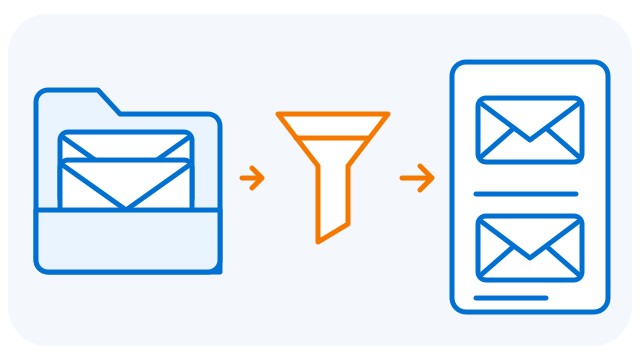
Select messages
The program selects messages from the agreed Outlook folder according to the configured filters.
02
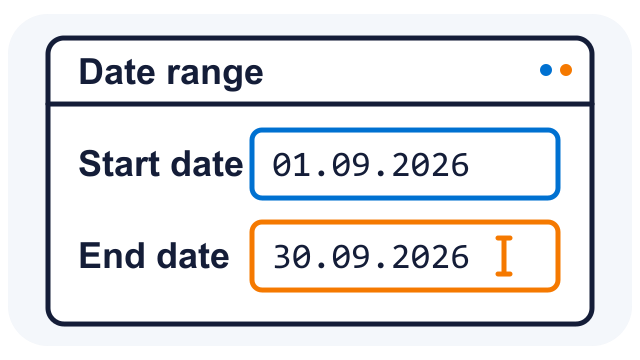
Choose a date range
The user chooses the date range for the report.
03
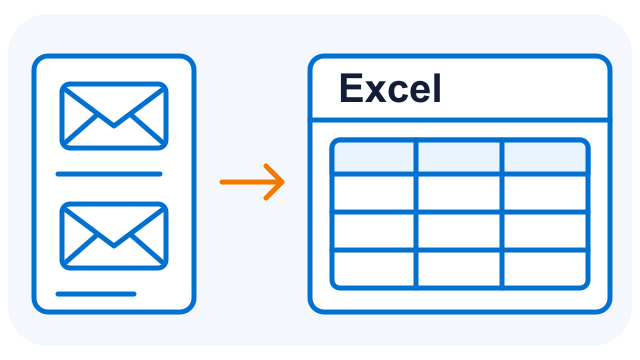
Create the Excel table
The program reads data from the selected messages for the chosen date range and creates an Excel table.
04
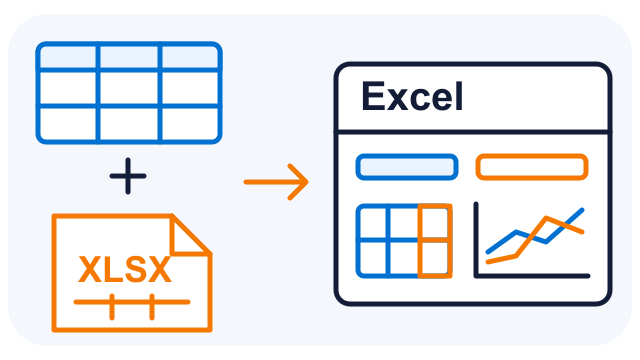
Final report with charts
The program adds data from external XLSX files to the email results. It creates the final report with summaries and charts.
One final report, with the figures side by side. Email-derived results and the additional spreadsheet data are presented together so the team can compare activity and relevant totals without manually joining separate sources.
This example reads structured report messages. It does not depend on AI understanding arbitrary correspondence or opening email attachments. Different sources and layouts can be assessed as part of a tailored implementation.
What your team receives
Details when needed. An overview when it matters.
Detailed records
A structured list of accepted report messages, with the available dates, volumes and processing figures.
Summaries and comparisons
Totals and breakdowns for the reporting period, including agreed comparison data from the additional workbook.
Charts
Visual activity summaries that help the team see patterns across days and months.
Why algorithms fit this task
Stable rules for stable inputs.
These emails are recurring reports with a predictable field structure. The task is to read and calculate defined values, rather than interpret open-ended language. A rule-based process is easier to test against known examples and repeat consistently.
Consistent treatment
The same input and settings follow the same rules, including how repeated processing is counted.
Less manual preparation
Reduce copying, spreadsheet assembly and the need to teach each person a sequence of manual reporting steps.
Clear boundaries
If a message or spreadsheet format changes, assess and update the rules. AI is not used to guess what an unexpected field means.
Predictable processing still depends on the source data and agreed format. The team checks completeness and the final report; automation does not make incomplete input correct.
Common questions
A few things worth knowing
Can it read any kind of email?
This example reads recurring structured report messages in an expected format. We agree the source folder, filters and fields during delivery. Other email formats need their own rules.
How are repeated runs handled?
The operator can include all accepted runs or keep the latest run per file within the selected period. The report also identifies repeated processing where the source provides the necessary file identifier.
How is the additional spreadsheet used?
The program reads data from an agreed workbook layout and adds it to the final comparison. The current example can compare monthly figures, including the same month in a previous year; other layouts must be scoped and tested.
Does it use AI?
No. This workflow uses defined parsing and calculation rules. For recurring, structured inputs we recommend this approach because its processing is repeatable and can be checked against agreed examples.
Does it run and email the report automatically?
The current example is started by an operator, who chooses the reporting settings and output location. Scheduling and report delivery would be separate enhancements.
Which Outlook and where is the data processed?
The current solution works with classic Outlook for Windows. Parsing and Excel generation run in the local Windows application. Outlook continues its normal mailbox synchronisation; file locations follow the customer’s environment.
Adapt the example to your business
Have recurring emails that should become a report?
We can agree the input format, reporting period, comparison workbook and final layout around the figures your team actually needs.